How to Use AI to Optimize Windows Performance Without Slowing Down Your PC

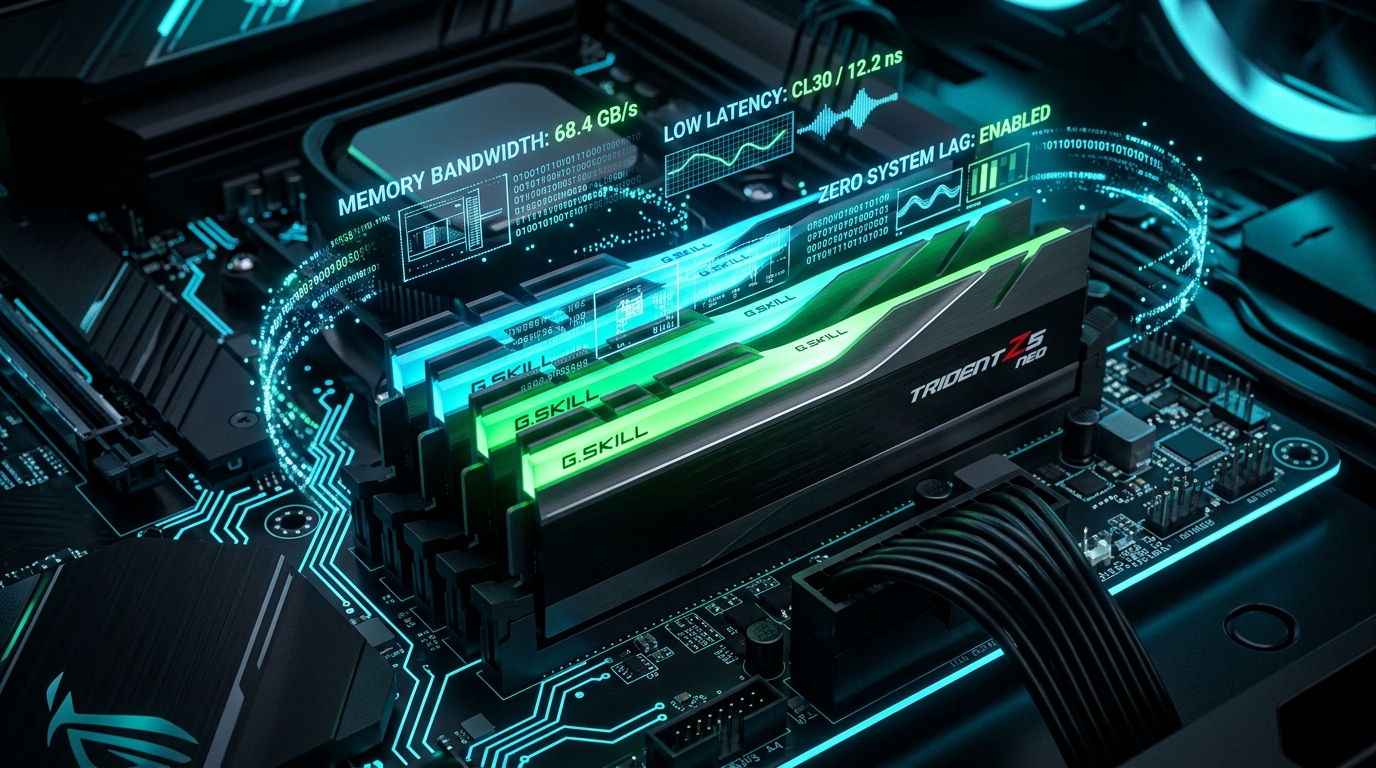
With the rise of on-chip NPUs (Neural Processing Units) and intelligent kernel features, many users wonder: does AI actually accelerate PC performance, or does it consume additional memory and battery?
1. The Role of Dedicated NPUs
Unlike running heavy neural networks on traditional CPUs or integrated GPUs, modern processors feature dedicated silicon designed specifically for low-power AI tasks. Background tasks such as microphone noise suppression, camera effects, and app pre-caching occur with negligible power draw, keeping main CPU cores free for demanding productivity workloads.
2. Harnessing Native Intelligent Windows Features
- Intelligent Storage Sense: Enable this in Settings > System > Storage. Windows automatically cleans temporary caches and system logs before storage drives reach critical thresholds.
- Dynamic Efficiency Mode: Modern schedulers automatically place inactive browser tabs and idle services into Efficiency Mode, curbing background memory and cycle consumption by up to 40%.
- Pruning Unnecessary Telemetry: Disable optional feedback reporting and ad personalization in Privacy settings to eliminate background network polling.
Lean Diagnostics with PruPru.exe
Clean system caches and streamline boot times with zero subscriptions and clean, native execution.
Download PruPru.exe →Frequently Asked Questions
Do I need an NPU-equipped processor for a fast PC?
No. A standard multi-core processor paired with an NVMe SSD and 16 GB of RAM provides exceptional speed. NPUs enhance specialized AI workloads, but core responsiveness relies on solid hardware fundamentals.
Do third-party 'AI PC boosters' deliver on their promises?
Exercise caution. Most third-party utilities promising triple-digit performance gains are bloatware. Native operating system controls remain the safest and most efficient path to speed.